
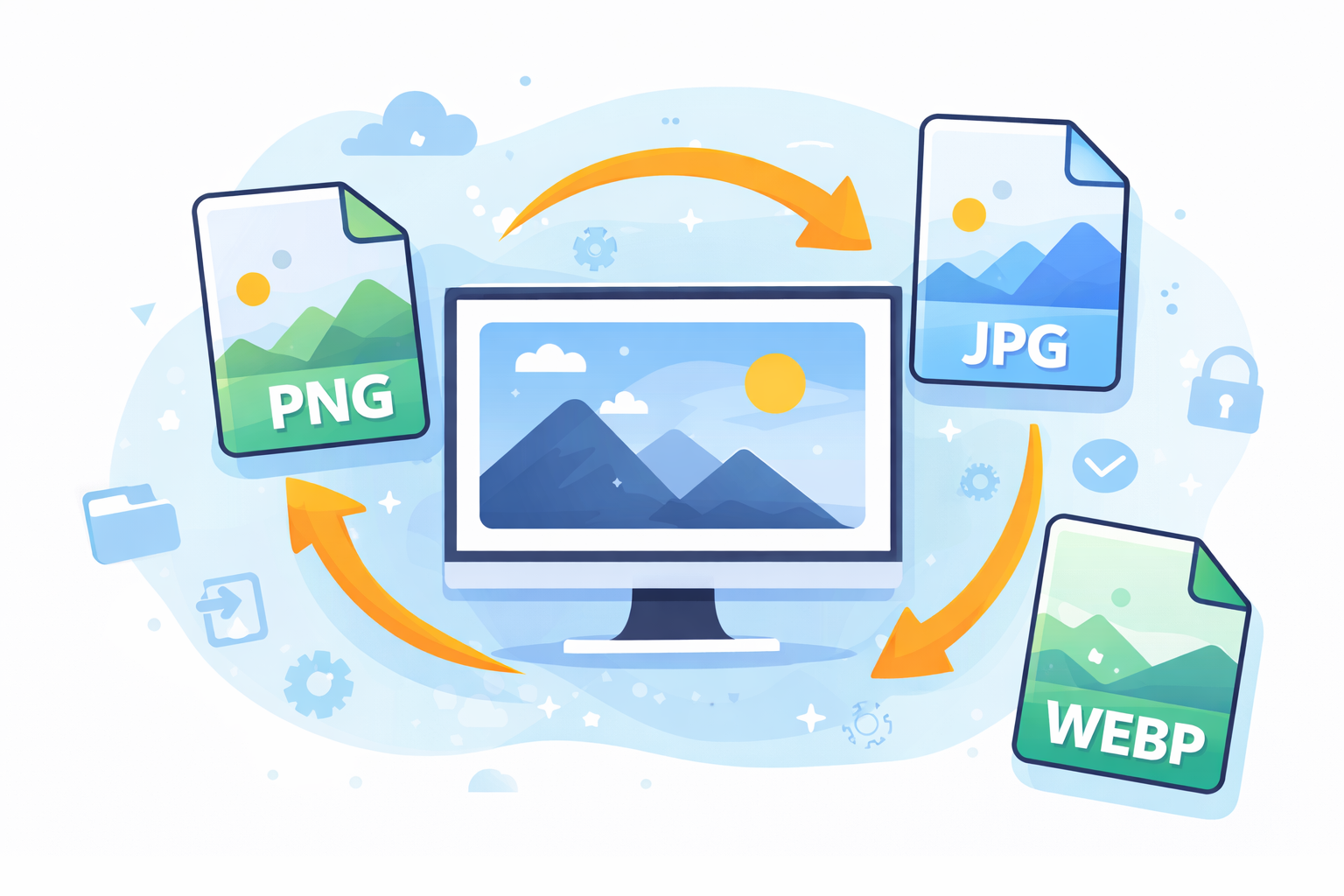
The process of learning how to convert image formats for Windows Without Software is extremely useful, particularly when you need a quick fix without having to install any additional software. Windows already comes with a variety of integrated tools that let users to easily convert images to various formats, including JPG, PNG, BMP as well as PDF.
If you’re creating images for web sites, reducing the size of mail attachments or to ensure compatibility with particular software, these methods built into the software can help you make your life easier and ensure that your computer is clutter-free.
This guide will take you through the simplest methods to convert images with only the software that comes preinstalled with Windows.
Understanding Image Formats on Windows
Before you begin exploring conversion methods it is important to know the most commonly used image formats that are available for Windows systems.
Why Image Format Conversion Is Important
Different formats serve different purposes. The choice of the right format can have an impact on:
-
File size
-
Image quality
-
Compatibility
-
Speed of loading on web pages
-
Storage effectiveness
For instance For instance, an example is that a PNG image could be bigger but retain transparency, whereas the JPG image is typically smaller, which is great for photos.
Most Common Image Formats Explained
| Format | Best For | Advantages | Disadvantages |
|---|---|---|---|
| JPG | Photos | Small size file | Quality loss of a small amount |
| PNG | Transparency and graphics | High-end | Larger size |
| BMP | Raw images | No compression | Large files |
| TIFF | Printing | Highest quality and extremely high standards | Large storage space use |
Knowing these formats will help you decide on the most appropriate conversion method.
Advantages of Converting Images Without Installing Software
Many people search online for tools or install software in the event of needing the ability to change images. However the built-in Windows tools are already able to handle the majority of need for conversion.
Avoiding Third-Party Software Risks
Unknown programs may pose risky situations, including:
-
Malware
-
Adware
-
Hidden tracking
-
System slowdowns
Utilizing Windows native tools can help ensure your computer’s security.
Using Built-In Windows Tools Efficiently
Windows contains a variety of applications for image conversion:
-
Microsoft Paint
-
Windows Photos
-
Snipping Tool
-
File Explorer
-
Microsoft Office apps
These tools allow for quick and reliable conversions without the need for additional downloads.
Method 1: Convert Images Using Microsoft Paint
Microsoft Paint is one of the easiest methods to convert images.
Step-by-Step Guide
-
Right-click the image file.
-
Select Open With – Paint.
-
Simply click File at the top left corner.
-
Choose Save As.
-
Choose the format you prefer.
There are many options to choose from:
-
JPEG
-
PNG
-
BMP
-
GIF
Supported Formats in Paint
Paint supports various formats to export images, making it one of the most simple solutions.
The most effective use cases:
-
Quick JPG – Conversion to PNG
-
Converting screenshots
-
Simple image editing
Method 2: Convert Images Using Windows Photos App
It is also possible to use the Windows Photos program is a different integrated solution.
Steps
-
Open the image within Photos..
-
Click on the 3 dots to open the menu.
-
Choose Save As or Save a Copy.
-
Choose a new format.
Exporting Images in Different Formats
Although Photos concentrates exclusively on JPG and PNG but it permits the easy resizing of files and save copies. This effectively converts the format of files.
Method 3: Convert Images Using File Explorer Preview
This method is effective for basic situations.
Renaming Image Extensions
Steps:
-
Make sure to enable Extensions for File names within File Explorer.
-
Right-click on the image.
-
Change the name of
.pngto.jpgor vice versa.
However, this technique is not always successful since the format used by the file could be unchanged.
This method is only used when the structure of your file already is compatible with the new format.
Method 4: Convert Images Using the Snipping Tool
This Snipping Tool can also help to convert images in indirect ways.
Steps
-
Display the image in your browser.
-
Launch Snipping Tool.
-
Take a picture.
-
Click Save.
-
Select either JPG format..
Saving Screenshots in Different Formats
This method is particularly effective for conversions that involve:
-
Web images
-
Screenshots
-
Images protected by a password
Method 5: Convert Images Using Microsoft Word or PowerPoint
A lot of people don’t know that Office applications can also convert images as well.
Steps
-
Open Word or PowerPoint.
-
Insert the picture.
-
Right-click on the image.
-
Select Save as Picture.
-
Select the format you prefer.
Save Images From Office Apps
Office supports a variety of formats, like:
-
PNG
-
JPG
-
TIFF
-
BMP
This is why it’s surprisingly effective for conversion of formats.
Method 6: Convert Images Using Print to PDF
Windows features Microsoft Print to PDF which allows image-to-PDF conversion.
Steps
-
Right-click on the image.
-
Select Print.
-
Choose Microsoft Print to PDF.
-
Click Print.
-
Files can be saved.
This method is great for:
-
Documents
-
Sharing images in PDFs
-
Preparation for printing
Best Image Format Choices for Different Uses
The best format to choose depends on the goal you want to achieve.
Image Format Comparison
| Use Case | Best Format | Reason |
|---|---|---|
| Websites | JPG / WebP | Smaller file size |
| Logos | PNG | Support for transparency |
| Printing | TIFF | High-end |
| Screenshots | PNG | Lack of clarity |
| Documents | Simple sharing |
Common Mistakes When Converting Image Formats
Although the process of converting images is not difficult, errors can impact the result.
1. Losing Image Quality
Repetitive conversions (especially JPG – JPG) lower the quality.
2. Ignoring Transparency
PNG allows transparency, whereas JPG does not.
3. Enlarging File Size
Converting files from JPG to PNG can significantly increase size of files.
4. Losing Metadata
Some conversions remove metadata like camera details.
How to Avoid Image Quality Loss
Best practices:
-
Convert only once, if possible.
-
Begin with the best quality image
-
Beware of unnecessary recompression
Tips to Optimize Image Files After Conversion
Following conversion, you may be looking to optimize your photos.
Some helpful tips include:
-
Resize large images before uploading
-
Use JPG as a photo format for your photos.
-
Use PNG as graphics
-
Get rid of any metadata that isn’t needed.
For more guidance on image optimization, check this helpful resource:
https://developer.mozilla.org/en-US/docs/Web/Media/Formats/Image_types
Security and Privacy Considerations
When online conversions are made images, the files are uploaded on external servers. This could cause sensitive pictures to be exposed.
Utilizing built-in Windows tools reduces the threat due to:
-
The files are saved on your device
-
There is no uploading requirement
-
No data tracking occurs
Frequently Asked Questions
1. Does Windows transform images, without the need for installing software?
Yes. Windows comes with tools such as Paint, Photos, and Snipping Tool that make it easy to perform conversion of image formats.
2. What is the simplest method of converting image formats for Windows?
Utilizing Microsoft Paint is the easiest and fastest way to. Open the image, then select Save as.
3. Does converting images reduce quality?
It’s dependent what format you choose. JPG compression may decrease quality, whereas PNG conserves the quality.
4. Can I transform multiple images at once without using software?
Windows doesn’t come with an integrated batch converter however, it is possible to convert images separately with Paint and Photos.
5. Can you safely rename extensions of images?
The process of naming extensions can work however it doesn’t actually convert the image format. This isn’t a reliable technique.
6. Which image format is ideal for web sites?
JPG is generally the best choice for photos since it balances quality and file size.
Conclusion
Knowing the process of converting images formats using Windows Without Software can reduce time, speed up workflow and keep your system free of unnecessary programs. Windows already comes with a variety of powerful tools to simplify image conversion and are efficient.
Starting with Microsoft Paint and the Photos app to innovative methods made with Word, PowerPoint, and even the Snipping Tool there are a myriad of options without the need to install any software.
If you choose the correct format, avoiding common errors and enhancing your images following that, you can be sure that your images are of high-quality and compatible with applications, websites as well as sharing services.
The ability to master these techniques will give you total control over your photos quickly effectively, safely, and securely.